Search the Community
Showing results for tags 'hyper-v'.
-
I thought I would share my steps for using Nakivo to migrate a Hyper-V or Nutanix servers to Proxmox. Steps to get a Nutanix or Hyper-V VM into Proxmox using Nakivo Most of the time it will be easier to use a Hyper-V or Nutanix backup and then do an "Export Backup" to get the .vhd files. Then import those into Proxmox. Do not export as VHDX, use VHD. Use SFTP to upload the VHD to Proxmox. I upload them under /mnt/pve with WinSCP, but if your using Ceph and your local storage is limited, you may need to upload it to /mnt/pve/cephfs or mount other NFS storage for staging like I did with my NFS share called qnap-proxmox. In these examples, I will create a VM called 102 and make it without a virtual disk (Use this command line or use the GUI, I like the GUI) qm create 102 --name MyServerName --memory 4048 --sockets 2 --cores 2 --net0 virtio,bridge=vmbr2 Your Bridge may not be vmbr2 like mine, so double check that before you copy and paste the command line from here. Import the VHD disk to the VM without specifying a format (VM 102 in this example) - pvpool1 is my ceph storage pool qm disk import 102 /mnt/pve/qnap-proxmox/vm-102-disk-1.vhd pvpool1 Check your storage name and don't just copy and paste mine (pvpool1) unless your ceph config is like mine. Your storage might be called local-zfs or just local Attach the disk and configure the boot order from the GUI, also set the boot mode to UEFI if it was UEFI before the move. Start the new VM, it may need to reboot 2 or 3 times to install all the drivers. Mount the virtio ISO to the CD Drive if this is a new Windows VM. You should really install the virtio drivers before the migration for windows servers. Login and install the Guest tools from the virtio ISO. D:\guest-agent\qemu-ga-x86_64.msi Notes: Nutanix servers will usually already have VirtIO drivers for Windows installed. New Windows Servers or Window Servers on Hyper-V will need Virtio drivers installed before migration. Linux already has virtio drivers installed by default. I give all servers at least 2 CPU and 2 cores to start with and adjust later. Check the box for Qemu agent and TPM (if UEFI) when you create the server VM. If you're restoring a Windows VM, be sure to change the OS Type from the default Linux to Windows, I missed that in my demo. No network after first boot up? Change the NIC from VirtIO to Intel E1000, then try installing VirtIO now that you have network again over Intel E1000.
-
what's the difference between Backup and Replication of Microsoft Hyper V???
- 1 reply
-
- backup
- replication
-
(and 1 more)
Tagged with:
-
Hey! Can I somehow configure Hyper-V replication with servers in a Workgroup and not connected to an Active Directory domain?
- 1 reply
-
- 1
-

-
- hyper-v
- replication
-
(and 2 more)
Tagged with:
-
NAKIVO v10.2 is out! The latest release brings some of the most relevant features for 2021: SharePoint Online Backup, Ransomware-Proof Backups with Amazon S3 Object Lock and Tenant Resource Allocation. Download the Free Trial to explore the benefits of the new functionality yourself.
- 22 replies
-
- amazon s3 object lock
- amazon s3
-
(and 41 more)
Tagged with:
- amazon s3 object lock
- amazon s3
- sharepoint online
- sharepoint online backup
- backup
- ransomware
- ransomware-proof backups
- object lock
- nakivo backup & replication
- nakivo backup & replication v10.2
- v10.2
- free
- high backup speed
- small backup size
- fast deployment
- instant recovery
- guaranteed recovery
- site recovery
- qnap
- synology
- robo
- virtual
- physical
- cloud
- saas
- m365
- m365 backup
- vmware
- vmware backup
- hyper-v
- hyper-v backup
- nutanix ahv backup
- windows server backup
- linux server backup
- windows workstation backup
- linux workstation backup
- microsoft office 365 backup
- amazon ec2 backup
- oracle rman backup
- amazon s3 backup
- wasabi backup
- tape backup
- pbba
-
Hi, A bit of background relevant to the question; We have a hypervisor with 48GB RAM. This is intended for only 1 virtual machine, a very high volume MS SQL server on the underlying SSD storage. The guest VM will be using 32GB RAM, so 75% of the RAM on the host. It is not yet backed up by NAKIVO (I will be adding it this weekend to give it time to perform the initial backup). I would like to enable screenshot verification on the VM when I do add it, but this will take the memory usage over what the host has when it does a Flash Boot to verify the screenshot. Is it likely to just fail, or will it spill over to the configured page file? Or is there any way I can set it to have a lesser amount of RAM when it does the Flash Boot? Thanks in advance.
-
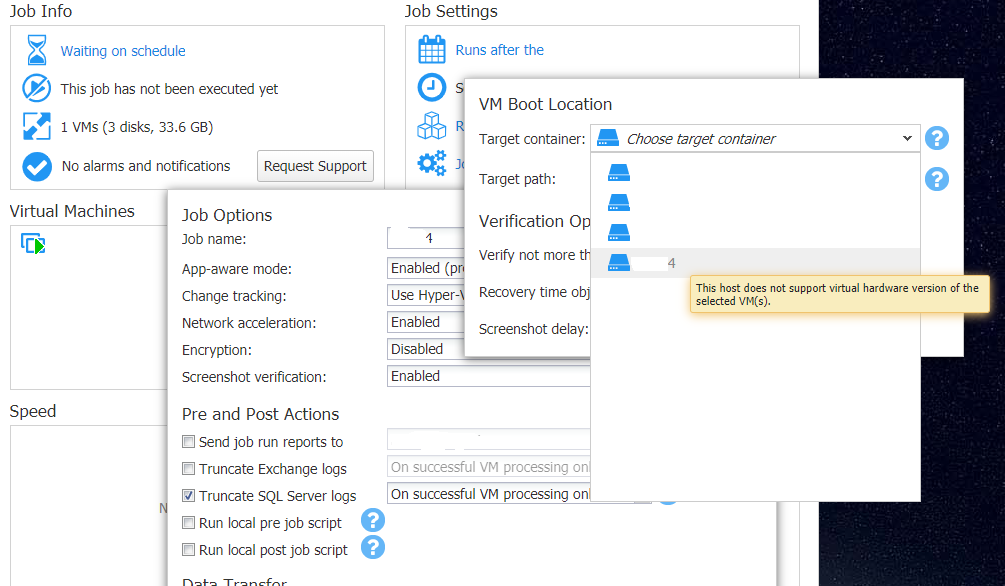
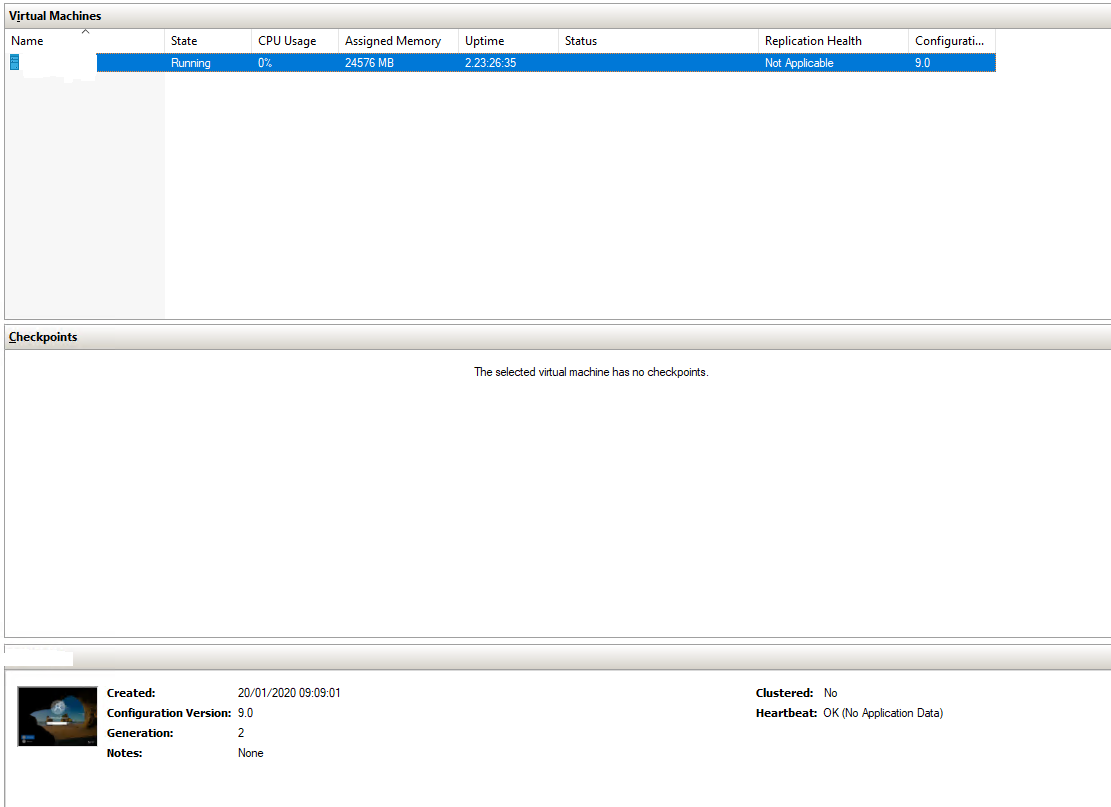
I'm trying to enable Screenshot Verification for a newly added host & VM. When I try to enable Screenshot Verification I cannot select the current host, apparently due to a mismatch with the virtual hardware version. But it's the current host therefore I don't see how? Both the host and guest are running Windows Server Standard 2019. The Virtual Machine version is 9.0 NAKIVO is still on version 8.5.2 (build 32767) and I can't upgrade it for at least a couple of weeks.